Azure AD authentication (optional)
EasyLab can delegate login to Azure AD (Microsoft Entra ID) for both students and admins.
Student authentication
When enabled, a Sign in with Microsoft button appears on the student login page. Any account in the configured tenant is accepted — no allow-list is required.
How it works
- The student clicks Sign in with Microsoft and is redirected to Microsoft's login page.
- After a successful Microsoft login, EasyLab creates a local session using the student's email address.
- When the student first requests a workspace, the workspace is provisioned automatically for that email address with a server-generated access secret — identical to the password-based flow. Azure AD is never configured on the workspaces themselves.
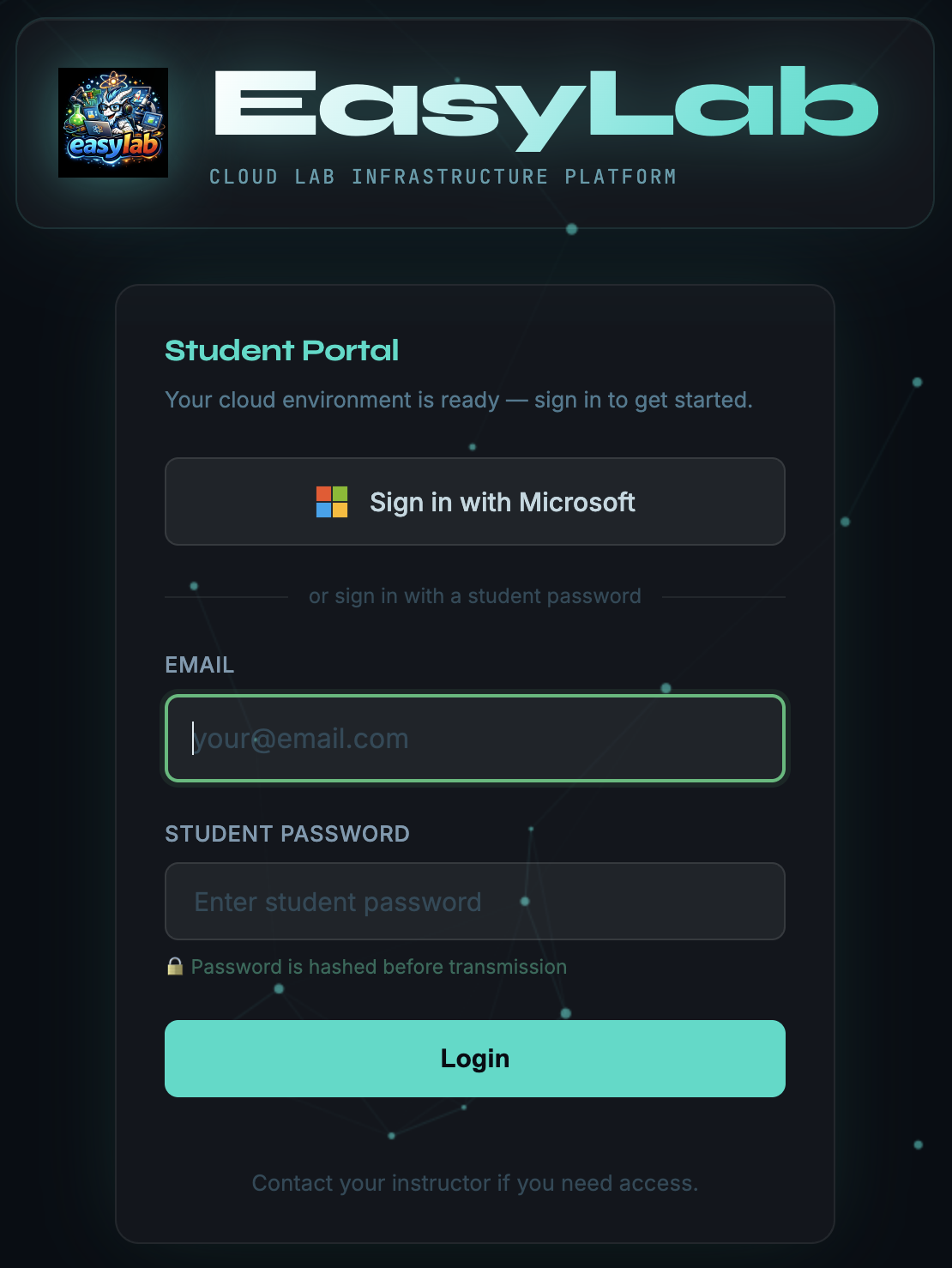
Labs with their own student portal
A lab's in-lab student portal shows the same Sign in with Microsoft button, on its own address. The sign-in still runs through this (central) instance, which then hands the student back to the lab's portal — so the redirect URIs below are the only ones to register, whatever the number of labs. It requires this instance's public address to be set on the Student portals page.
Admin authentication
When an Admin Group ID is configured, a Sign in with Microsoft button also appears on the admin login page (/login). Only users who are direct members of the specified Azure AD group are granted admin access.
How it works
- The admin clicks Sign in with Microsoft and is redirected to Microsoft's login page.
- After the Microsoft login, EasyLab calls the Microsoft Graph API (
/me/memberOf) using the access token to verify the user is a direct member of the required group. - If the user is in the group, a normal admin session is created and the user is redirected to
/admin. Otherwise, login is rejected with an error.
The admin password login remains available alongside Microsoft login — both methods work simultaneously.
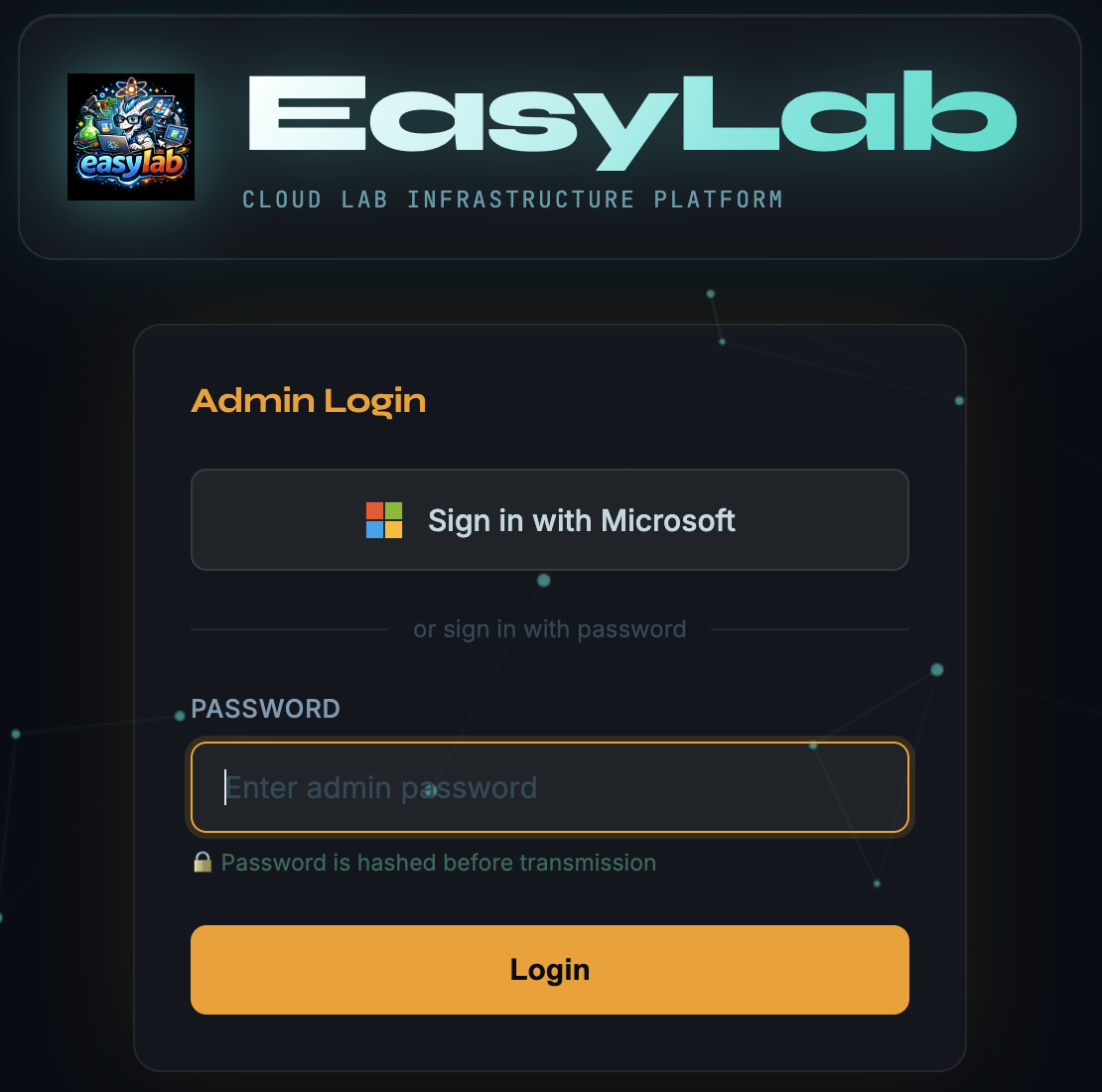
Once an Admin Group ID is saved, an additional option appears: Disable password login for admins. When this checkbox is enabled, the admin password form is hidden and admins can only log in via Microsoft. Has no effect if the Admin Group ID is not set.
Setup — Azure App Registration
The same Azure AD app registration is used for both student and admin login.
- In the Azure portal, go to Microsoft Entra ID → App registrations → New registration.
- Add Redirect URIs for both student and admin callbacks (Web platform):
https://<your-easylab-host>/student/auth/azure/callbackhttps://<your-easylab-host>/admin/auth/azure/callback
- Under Certificates & secrets, create a new client secret and copy its value immediately.
- Note the Application (client) ID and Directory (tenant) ID from the Overview page.
- Under API permissions, ensure the following delegated permissions are granted:
openid,email,profile,User.Read. - To enable admin login, find the Object ID of the Azure AD group whose members should be admins (under Microsoft Entra ID → Groups → your group → Overview).
Configuration — admin UI (recommended)
The easiest way to configure Azure AD is through the admin interface:
- Go to Provider → Azure in the header (or navigate to
/admin/azure-options). - Select the Credentials tab.
- Scroll down to the Azure AD — Student Login (OAuth) section.
- Enter the Application (Client) ID, Client Secret, and Directory (Tenant) ID.
- Optionally, enter the Admin Group ID (Azure AD group Object ID) to enable admin Microsoft login.
- Click Save Azure AD Config.
The configuration is persisted to disk and takes effect immediately — no restart required. Click Disable Azure AD Login (visible when a client ID is saved) to clear the configuration.
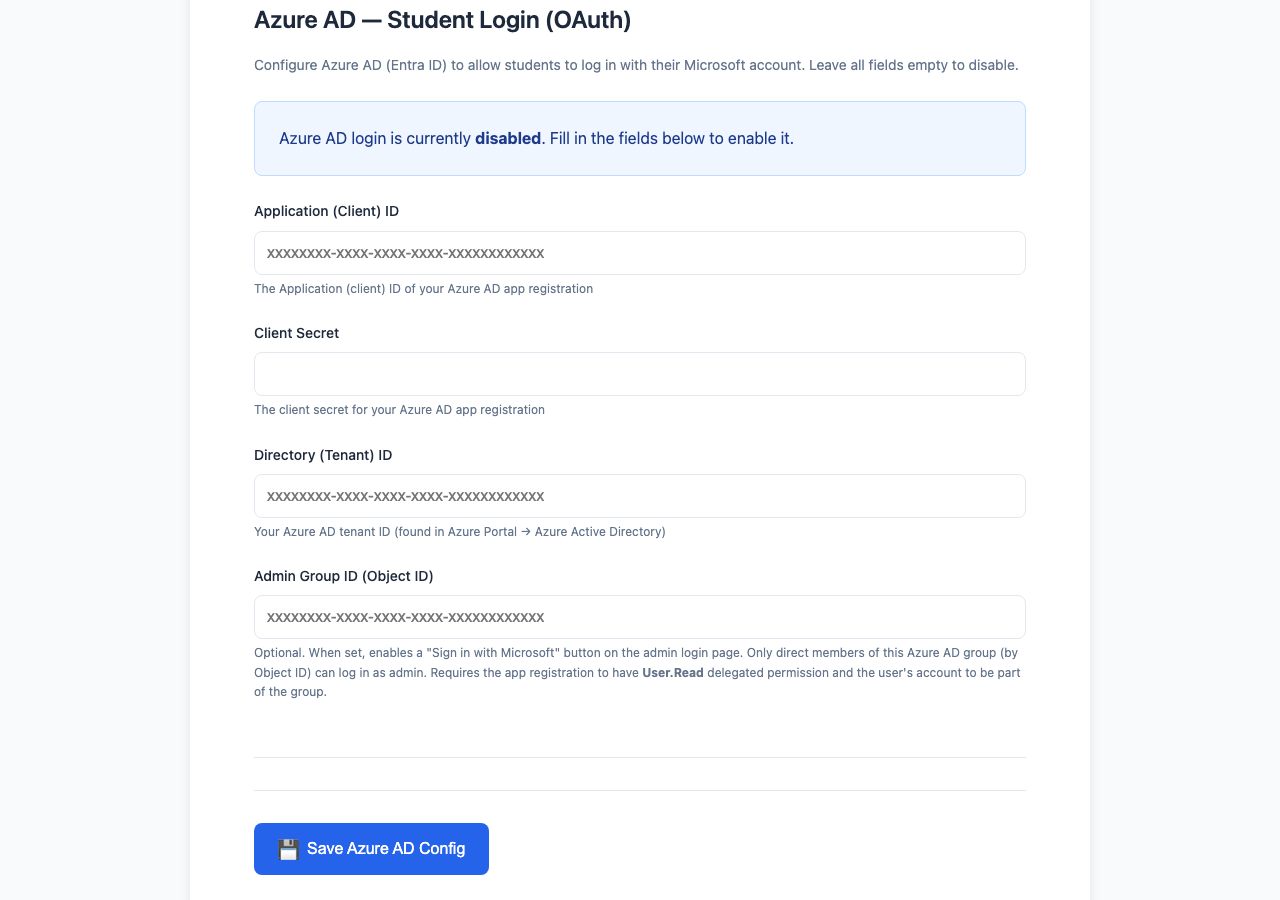
Once a client ID is saved, two additional options appear under Login restrictions:
- Disable password login for students — hides the student password form; students can only authenticate via Microsoft.
- Disable password login for admins — hides the admin password form on
/login; only visible when an Admin Group ID is also set. Admins can only log in via Microsoft.
Neither option has any effect if Azure AD is not configured.
Configuration — environment variables (alternative)
You can also set the following variables at startup (in your .env file or as Docker environment variables):
| Variable | Description |
|---|---|
AZURE_AD_CLIENT_ID |
Application (client) ID of the app registration |
AZURE_AD_CLIENT_SECRET |
Client secret value created in the app registration |
AZURE_AD_TENANT_ID |
Directory (tenant) ID |
AZURE_AD_ADMIN_GROUP_ID |
Azure AD group Object ID whose direct members are allowed as admins (optional) |
If any of the first three variables is absent and no UI configuration is saved, Azure AD login is disabled for both students and admins.
Note
UI-saved configuration takes precedence over environment variables if both are present at startup. These are also separate from the Azure infrastructure credentials (AZURE_CLIENT_ID / AZURE_CLIENT_SECRET / AZURE_TENANT_ID) used for AKS provisioning.