OVHcloud configuration
This section is dedicated to the OVHcloud configuration. It applies only when you choose Create New Infrastructure in the lab wizard. When using Use Existing Cluster, OVHcloud credentials and configuration are not required.
Setting credentials
OVHcloud API credentials can be set in either of these ways:
- Admin UI — In the header, go to OVH → Credentials and enter your application key, secret, consumer key, service name, and endpoint. Credentials are stored in memory only and cleared on server restart.
- Environment variables — Set the variables listed below before starting EasyLab (e.g. in Docker, Helm, or via an environment file when running the server). If all required OVH variables are set at startup, they are loaded automatically.
Configuration keys reference
All configuration keys related to OVHcloud are listed below. These are set via the EasyLab UI; keys used only when running Pulumi CLI directly are not documented here.
API credentials (environment variables)
| Key | Description | Default |
|---|---|---|
OVH_APPLICATION_KEY |
OVHcloud application key | - |
OVH_APPLICATION_SECRET |
OVHcloud application secret | - |
OVH_CONSUMER_KEY |
OVHcloud consumer key | - |
OVH_SERVICE_NAME |
OVHcloud project/service name | - |
OVH_ENDPOINT |
OVHcloud API endpoint | ovh-eu |
Pulumi provider config
| Key | Description | Default |
|---|---|---|
ovh:endpoint |
OVHcloud API endpoint (set automatically from OVH_ENDPOINT) |
ovh-eu |
Network infrastructure (Pulumi config: network:*)
| Key | Description | Required |
|---|---|---|
network:region |
OVHcloud region (e.g. GRA11, SBG5) |
Yes |
network:gatewayName |
Name of the gateway | Yes |
network:gatewayModel |
Gateway model | Yes |
network:privateNetworkName |
Name of the private network | Yes |
network:networkId |
Network ID | Yes |
network:networkMask |
Network mask (e.g. 255.255.255.0) |
Yes |
network:networkStartIp |
Start IP of the subnet range | Yes |
network:networkEndIp |
End IP of the subnet range | Yes |
Node pool (Pulumi config: nodepool:*)
| Key | Description |
|---|---|
nodepool:name |
Node pool name |
nodepool:flavor |
OVHcloud instance flavor |
nodepool:desiredNodeCount |
Desired number of nodes |
nodepool:minNodeCount |
Minimum number of nodes |
nodepool:maxNodeCount |
Maximum number of nodes |
Kubernetes (Pulumi config: k8s:*)
| Key | Description |
|---|---|
k8s:clusterName |
Managed Kubernetes cluster name |
OVH Options
The OVH Options page lets you control which OVHcloud regions and flavors are available in the lab creation wizard. Access it from the OVH dropdown in the header, then click Options.
Loading data from OVH
Before configuring options, you need to populate the local cache with regions and flavors from the OVH API:
- Make sure your OVH credentials are configured
- Click Refresh from OVH to fetch the latest regions and flavors
If the cache is empty, the page displays a prompt with links to configure credentials and refresh.
Configuring regions
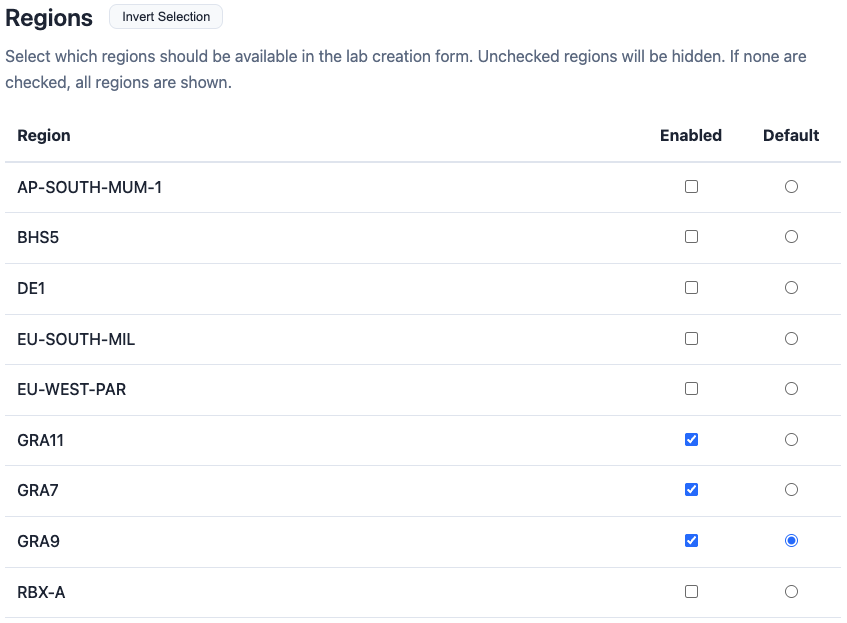
Once data is loaded, a table lists all available OVH regions. For each region you can:
- Enable/Disable — Check or uncheck the region. Only enabled regions appear in the lab creation wizard (step 3 — network). If none are checked, all regions are shown.
- Set as default — Select one region as the default for new labs.
- Invert Selection — Quickly toggle all region checkboxes.
Configuring flavors
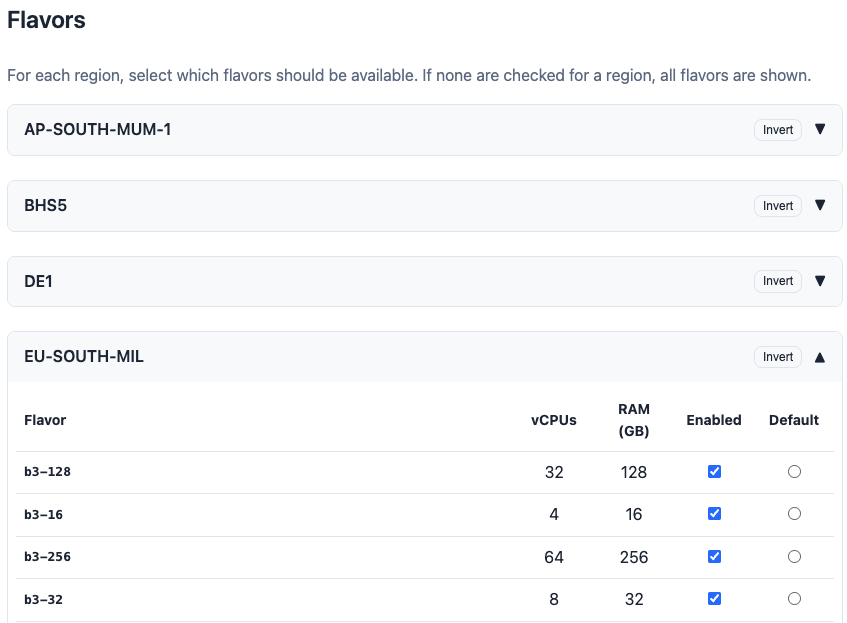
Below the regions table, flavors are grouped by region in collapsible sections. For each flavor you can see its vCPUs and RAM, and:
- Enable/Disable — Only enabled flavors appear in the lab creation wizard (step 5 — node pool) when the corresponding region is selected. If none are checked for a region, all flavors are shown.
- Set as default — Select one flavor as the default for each region.
- Invert — Toggle all flavor checkboxes within a region.
Flavor filters (vCPU and RAM)
You can restrict which flavors are shown by vCPU and RAM so that only instance types within a given size range appear. This applies both on the OVH Options page and in the lab creation wizard (step 5 — node pool), where a collapsible Flavor filters section is available.
- Min vCPUs / Max vCPUs — Only flavors with vCPU count inside this range are listed. Use 0 for no minimum or no maximum.
- Min RAM (GB) / Max RAM (GB) — Only flavors with RAM (in GB) inside this range are listed. Use 0 for no limit.
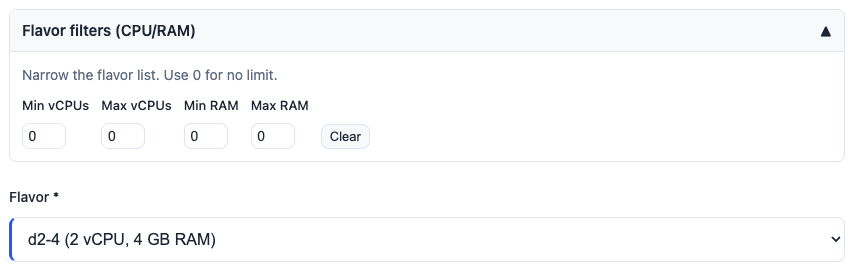
Filters are cumulative with region/flavor enablement: only flavors that are enabled and pass the vCPU/RAM bounds appear in the wizard. On the OVH Options page, set the values and click Save Options to persist them. In the wizard, you can adjust filters for that lab only; changing them there reloads the flavor dropdown. If no flavors match, the UI suggests adjusting filters or using 0 for no limit.
Click Save Options to persist your configuration (including flavor filters). The settings are stored on the server and apply to all future lab creation sessions.