Student Space
As a student, you have access to the student space to request new development environments or to retrieve information about your environments.
You can request one workspace per template per lab. If a lab has multiple templates (e.g. Docker, Go), you can request one workspace for each — so multiple workspaces in the same lab. Across different labs you can have even more workspaces running simultaneously.
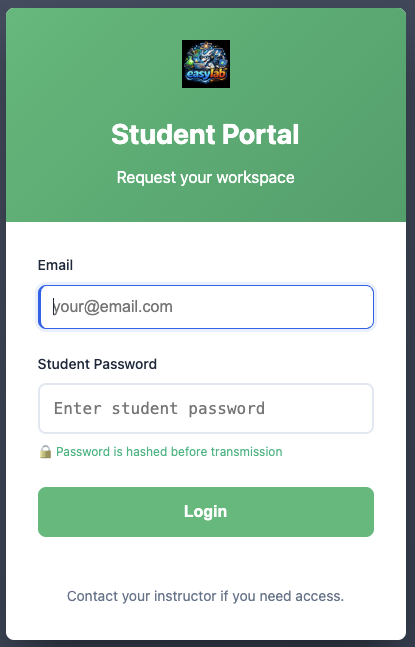
Login
To access the student portal, you must log in with:
- Email — your email address (used to identify you and create your Coder account)
- Student Password — provided by the workshop organiser
Your email is validated on submission and stored in your session. It will be pre-filled automatically on all subsequent pages so you don't need to enter it again.
Request a new development environment
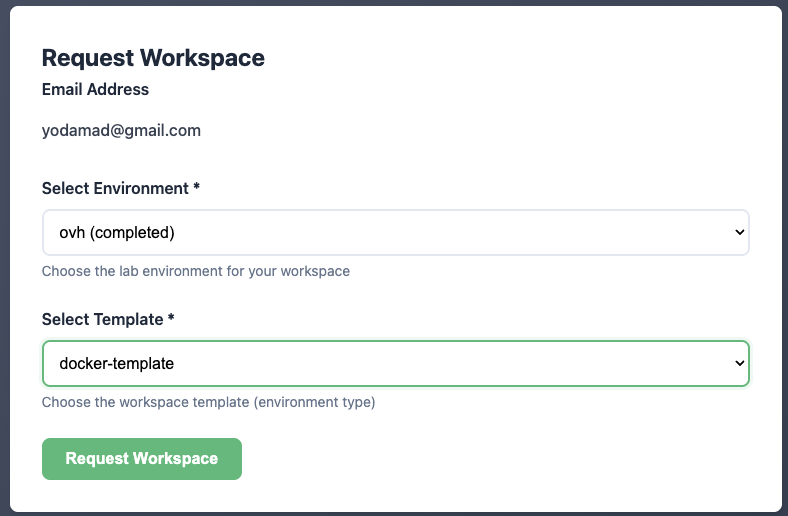
The request a new development environment page is the main page of the student space. It allows you to request a new development environment.
You need to provide:
- the lab (environment) you want to use
- the template (when the lab has multiple templates, a template dropdown appears — choose the workspace type you want)
Your email address is automatically filled in from your login session and is not editable on this form.
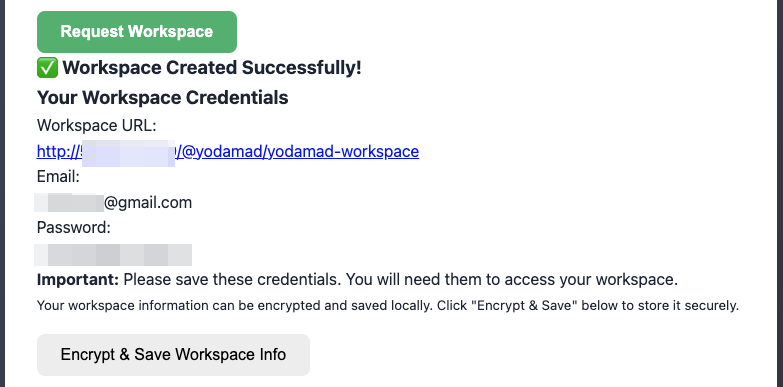
Then, you'll get all information needed to connect to your workspace!
Just use the provided link and credentials to connect to your workspace.
Save your workspace information
You can store the workspace information in a secured cookie in your browser to be able to retrieve information later if needed. You need to provide a password to encrypt and decrypt the workspace information.
My Workspaces
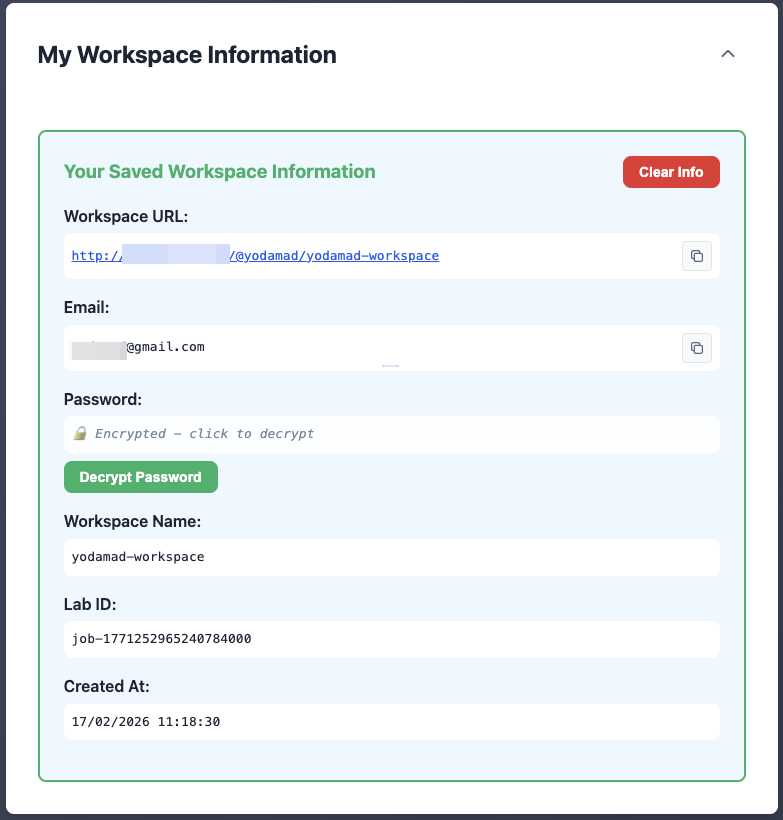
When you have saved at least one workspace, the My Workspaces panel appears at the top of the student portal. It displays a card for each workspace you have requested — across different labs and different templates within the same lab. Only workspaces matching your logged-in email are shown.
Workspace cards
Each card shows:
- Workspace name — the name assigned to your workspace
- Workspace URL — direct link to your Coder workspace (with a copy button)
- Email — the email used to create the workspace (with a copy button)
- Password — your workspace password, encrypted or in clear text (with a copy button)
- Lab ID — the lab this workspace belongs to
- Created at — when the workspace was created
Encrypting and decrypting credentials
For each workspace card you can:
- Encrypt — Enter a password to encrypt your workspace credentials. The encrypted data is stored in a browser cookie. This protects your password if someone accesses your browser.
- Decrypt — Use the same password to reveal your workspace password later.
Managing workspaces
- Clear — Remove a single workspace from your saved list
- Clear All — Remove all saved workspaces at once
The panel is collapsible — click the header to expand or collapse it.
Retrieve information about your environments
If you have already saved a workspace, you can retrieve information about your environments from the My Workspaces panel described above.
You need to provide the same password you used to encrypt the workspace information to decrypt the workspace password.
Submit feedback
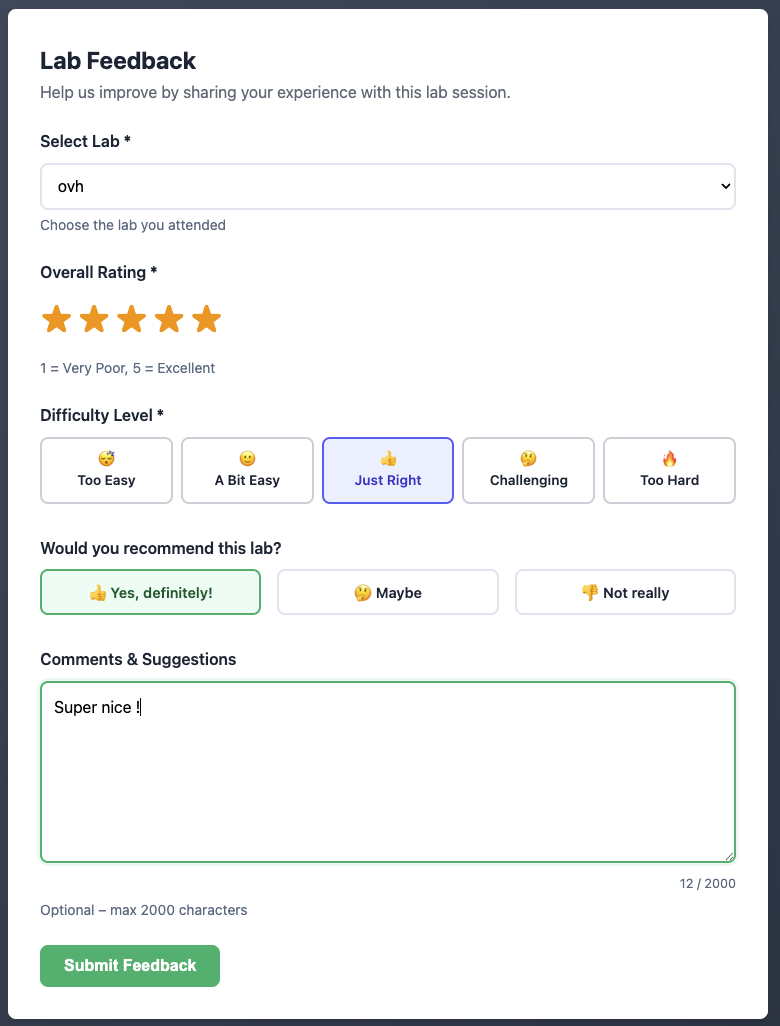
After completing a lab session, you can share your experience via the Feedback page, accessible from the student portal header.
Required fields:
- Lab — Select the lab you attended from the dropdown.
- Overall Rating — Rate the session from 1 (Very Poor) to 5 (Excellent) using the star selector.
- Difficulty Level — Choose one: 😴 Too Easy / 🙂 A Bit Easy / 👍 Just Right / 🤔 Challenging / 🔥 Too Hard.
Optional fields:
- Would you recommend this lab? — Yes, definitely / Maybe / Not really.
- Comments & Suggestions — Free-text field (max 2000 characters) for any additional remarks.
Click Submit Feedback to send your response. A confirmation message appears on success. The form resets automatically so you can submit feedback for another lab if needed.