Admin Space
As an admin (trainer, speaker, ...), you have access to the admin space to manage your labs:
- Create a new lab
- Define multiple Coder templates per lab (students get one workspace per template)
- Dry run (preview) a lab before creating it
- Set/update credentials for the cloud providers
- Manage your labs
- See logs
- Retrieve Coder admin credentials (URL, email, password) for completed labs
- Delete a lab
- Recreate a destroyed lab with the same configuration
- List workspaces
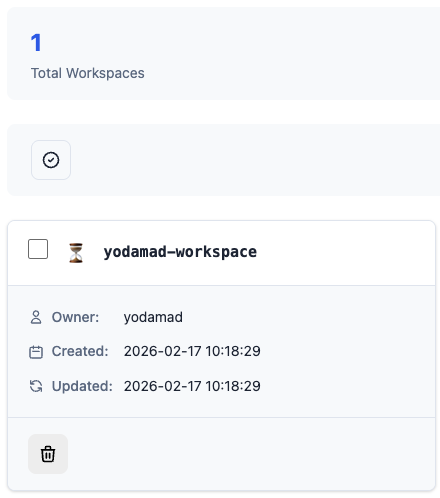
- Delete workspaces (one by one or in bulk)
- Retry a failing lab installation
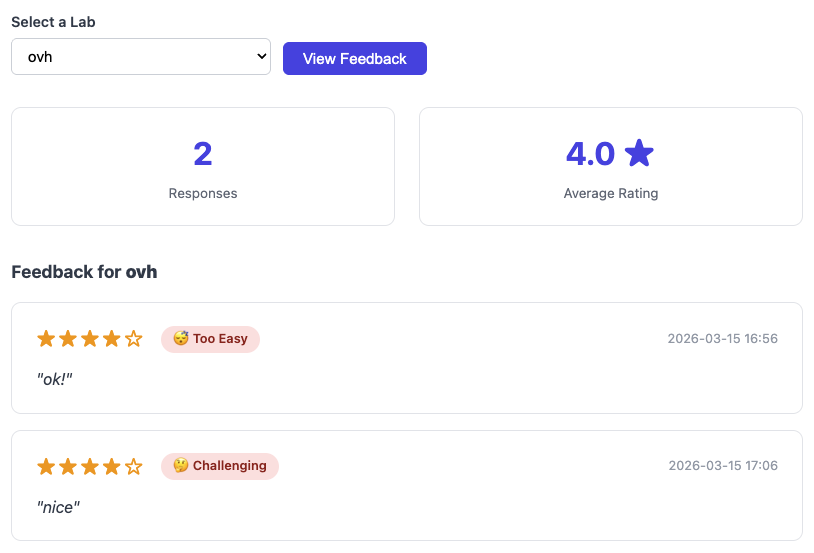
- View student feedback per lab (rating, difficulty, comments)
Create a new lab
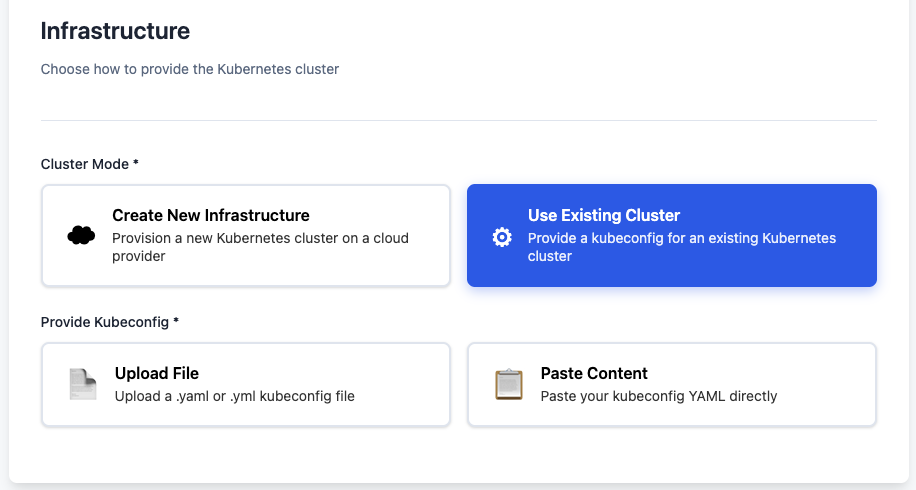
First you need to choose how to provide the Kubernetes cluster:
- Create New Infrastructure — Provision a new cluster on a cloud provider (OVHcloud)
- Use Existing Cluster — Provide a kubeconfig for an existing Kubernetes cluster
Use Existing Cluster
When you choose Use Existing Cluster, EasyLab skips cloud provider provisioning and uses your own Kubernetes cluster. This is useful when you already have a cluster (e.g. from your organization, a local dev environment, or another cloud provider).
What you need to provide:
- Kubeconfig — Either:
- Upload a
.yamlor.ymlkubeconfig file, or - Paste the kubeconfig YAML content directly
- Upload a
What is skipped:
- No cloud provider credentials required
- No network, cluster, or node pool configuration
- The wizard goes directly to Coder setup and template selection
The kubeconfig must have sufficient permissions to create namespaces and deploy Helm releases (Coder, PostgreSQL) in the cluster.
On OVHcloud (Create New Infrastructure)
When creating new infrastructure, you choose OVHcloud as the cloud provider. Most of the configuration is preconfigured; you only need to select the ID for the private network.
Others parameters can be overridden if needed
| Category | Parameter | Description |
|---|---|---|
| Network | ||
| Gateway Name | The name of the network gateway | |
| Gateway Model | The model of the network gateway | |
| Private Network Name | The name of the network private network | |
| Region | The region of the network | |
| Mask | The mask of the network | |
| Node Pool | ||
| Name | The name of the node pool | |
| Flavor | The flavor of the node pool | |
| Desired Node Count | The desired number of nodes in the node pool | |
| Min Node Count | The minimum number of nodes in the node pool | |
| Max Node Count | The maximum number of nodes in the node pool |
Setup Coder instance
You need to setup the secrets for the Coder instance:
- Coder Admin Password
- Coder Db Password
Others parameters can be overridden if needed
Coder Admin Email: The email of the coder adminCoder Version: The version of the coderCoder Db User: The user of the coder databaseCoder Db Password: The password of the coder databaseCoder Db Name: The name of the coder databaseCoder Template Name: The name of the coder template
Then, you need to define one or more Coder templates for the lab. Each template is a different workspace type (e.g. Docker, Go, Node) that students can choose when requesting a workspace.
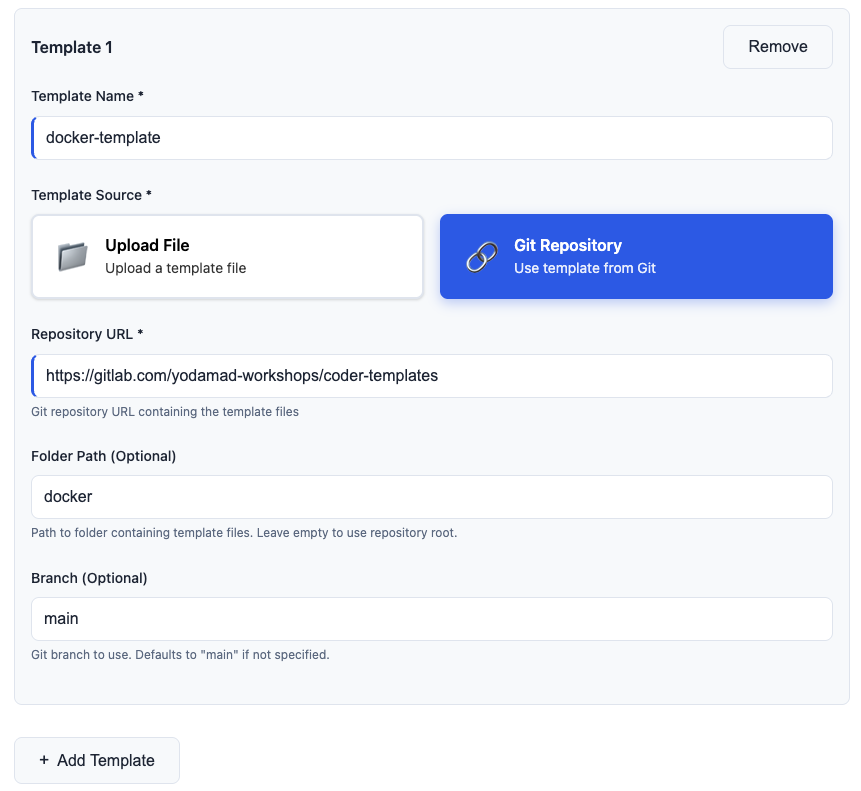
Use Add Template to define additional templates. For each template you can:
- Template name — Name shown in Coder and in the student template selector.
- Source — Either upload a file or use a Git repository.
Upload: a zip file containing the template and documentation, or a single .tf file.
Git: provide the repository URL, optional folder path, and optional branch (default main).
At least one template is required. Students can request one workspace per template within a lab, so multiple templates let them get multiple workspaces in the same environment (e.g. one Docker workspace and one Go workspace).
Dry run (preview before create)
Before creating a lab, you can run a dry run to preview what Pulumi would do without actually provisioning resources. This is useful to validate configuration and catch errors early.
- Complete the lab creation wizard up to the final step.
- Click Dry Run instead of Create Lab. EasyLab runs
pulumi previewand shows the planned changes. - If the dry run succeeds, the job appears in the labs list with status dry-run-completed (🔍).
- From the labs list, you can then Create Lab on that job to perform the real deployment with the same configuration.
Dry-run jobs do not create any cloud or Kubernetes resources; only real runs do.
Provider credentials
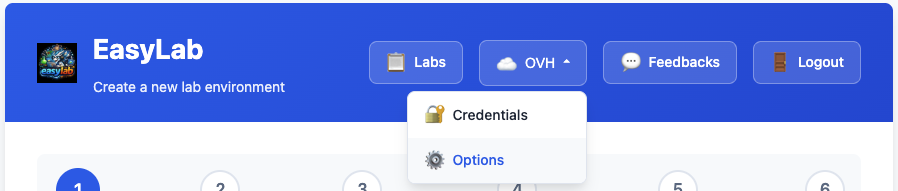
Cloud provider API credentials (e.g. OVHcloud) are configured from the header: OVH → Credentials. Credentials are stored in memory only and are used for all lab deployments. When using Use Existing Cluster, no cloud credentials are required.
For OVHcloud-specific setup (regions, flavors), see OVH Options and OVHcloud configuration.
Manage your labs
Clicking on the Labs button in the header will redirect you to the labs list page.
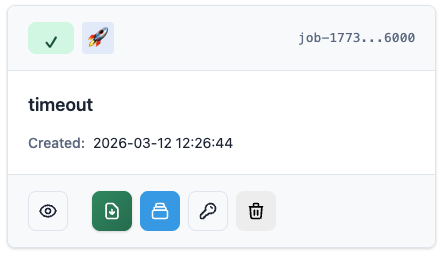
You can see all the labs you have created with following information:
- Status — created, running, completed, failed, destroyed, or dry-run-completed (preview-only)
- Creation date
- Type — Real run (🚀) or Dry run (🔍)
- Access to the creation logs
- Access to the kubeconfig file (for completed labs)
- Retrieve Coder credentials — For completed labs, a Coder admin credentials button opens a modal with the Coder URL, admin email, and admin password. You can copy each value or show/hide the password. Use these to sign in to the Coder instance for that lab.
- Actions — Destroy a lab; Recreate a destroyed lab with the same configuration (same Coder template, options, etc.)
- List of workspaces created for this lab — delete workspaces one by one or in bulk
Student Feedback
EasyLab collects feedback from students after each lab session. Admins can review the aggregated results per lab.
Viewing feedback
Navigate to Feedback in the admin header. Select a lab from the dropdown and click View Feedback.
The page shows:
- Response count — total number of feedback submissions for the selected lab
- Average rating — mean star rating across all submissions
- Individual entries — one card per submission, displaying:
- Star rating (1–5)
- Difficulty level (Too Easy / A Bit Easy / Just Right / Challenging / Too Hard)
- Free-text comment (if provided)
- Submission date and time
If no feedback has been submitted yet, an empty state is displayed.